
Missions & Reports
Create professional mission reports that document your work and build credibility with companies.
What Are Mission Reports?
Reports compile your daily work logs, photos, timesheet data, and mission summary into a single shareable document. They build trust with companies and serve as your work portfolio.
Step 1: Log Your Timesheets
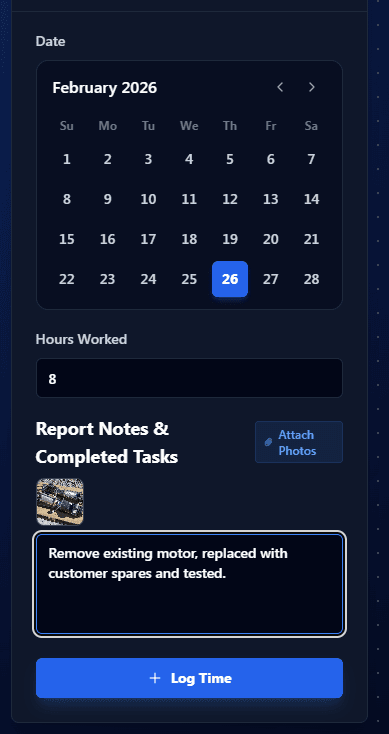
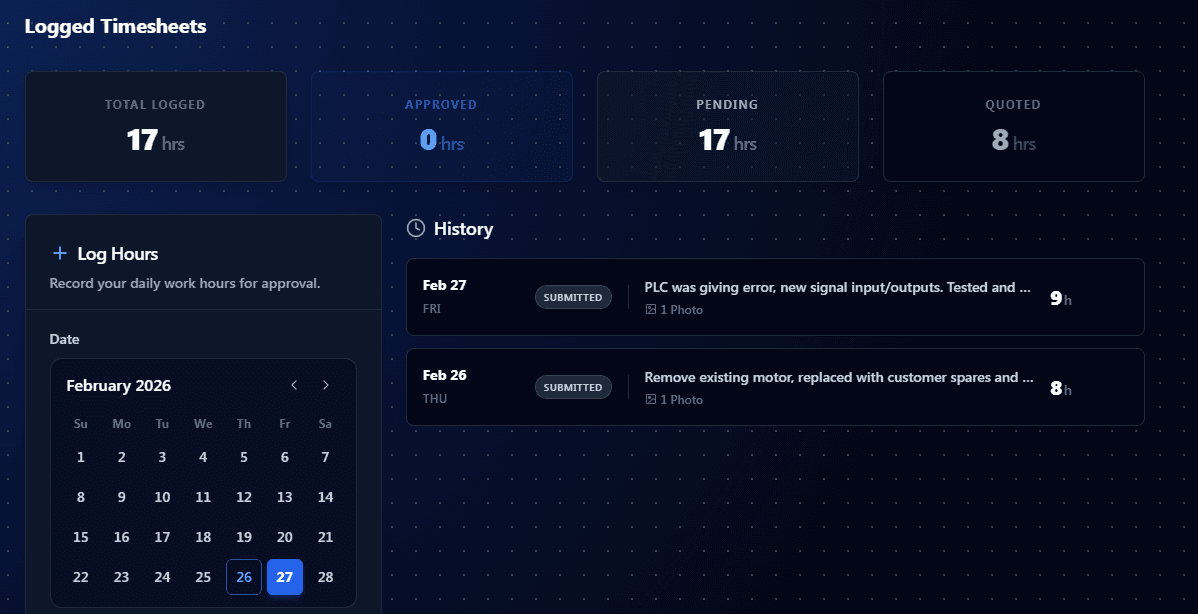
From your active booking, open the Timesheets tab. Select the date, enter hours worked, attach photos, and describe the tasks completed. Each approved entry becomes a daily log in your report.
Step 2: Build the Report
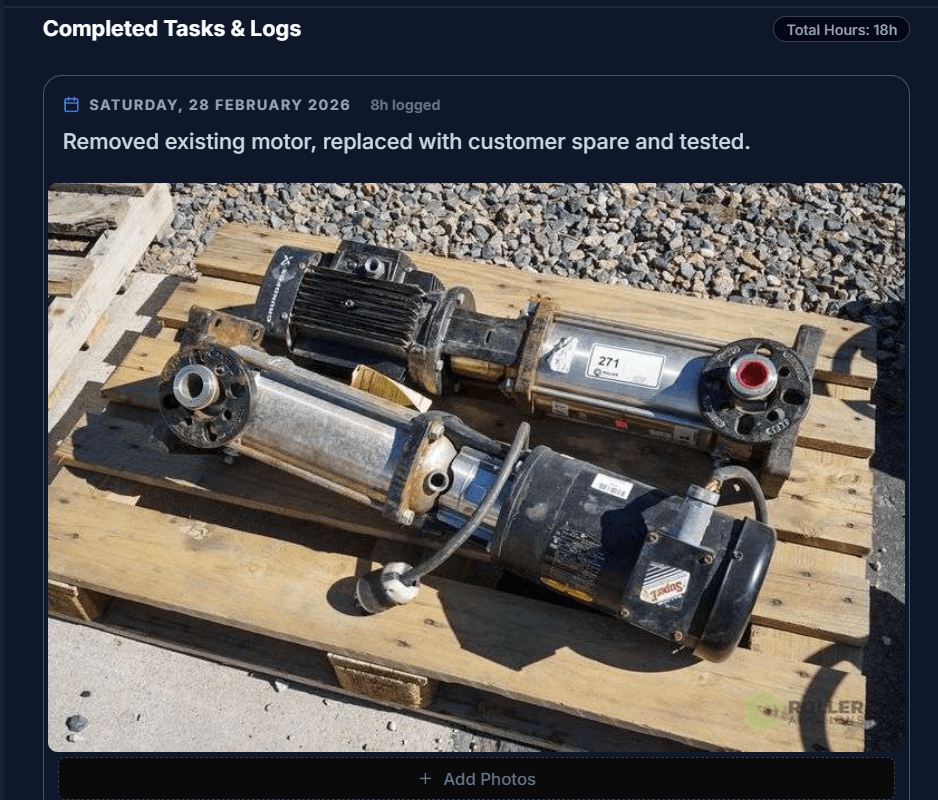
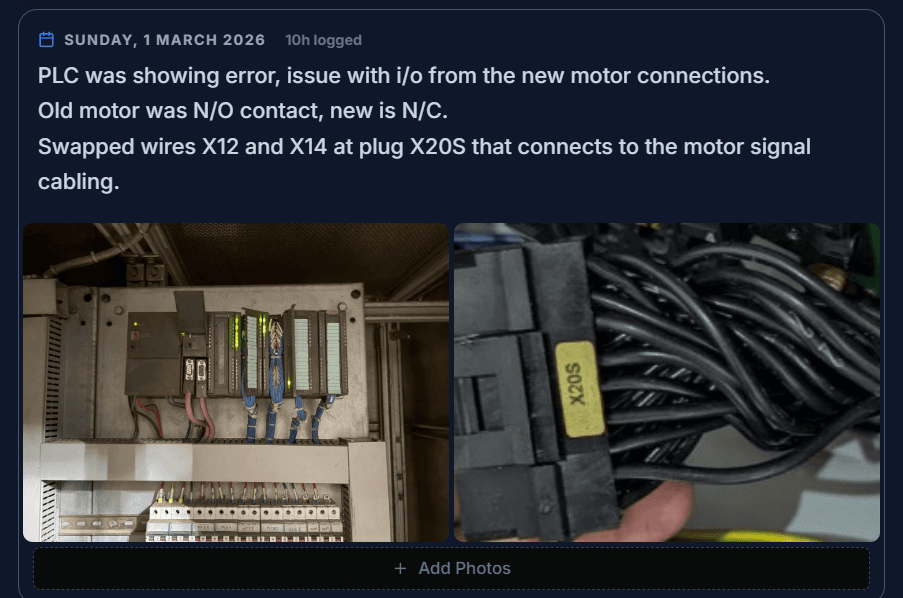
Navigate to the Report tab. Your approved timesheets automatically populate as daily log entries with photos. You can add more photos to each entry and edit descriptions.
Step 3: Write Summary & Save
Add a mission summary describing the overall scope and outcomes. Then save or export to PDF.
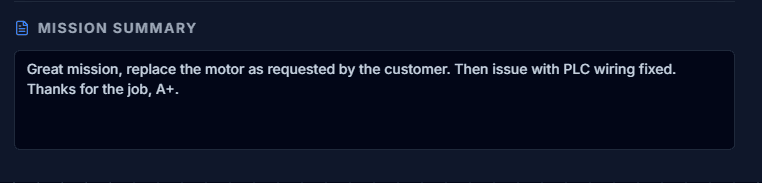

Photo Tips: Crop, Rotate & Layout
The crop tool lets you frame, rotate, and resize photos directly inside the report editor. Use it to remove distractions, fix orientation, and create clean, consistent photo grids before exporting your report.
Cropping a Photo
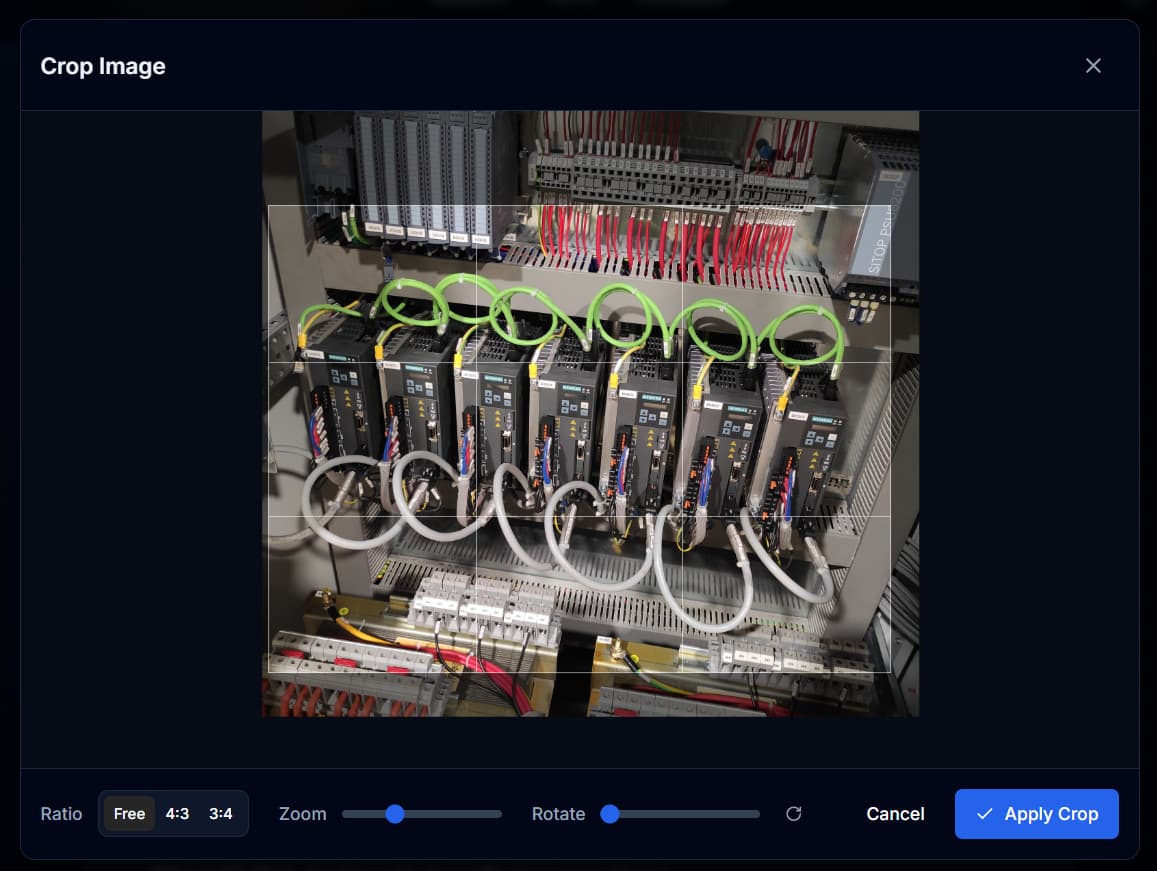
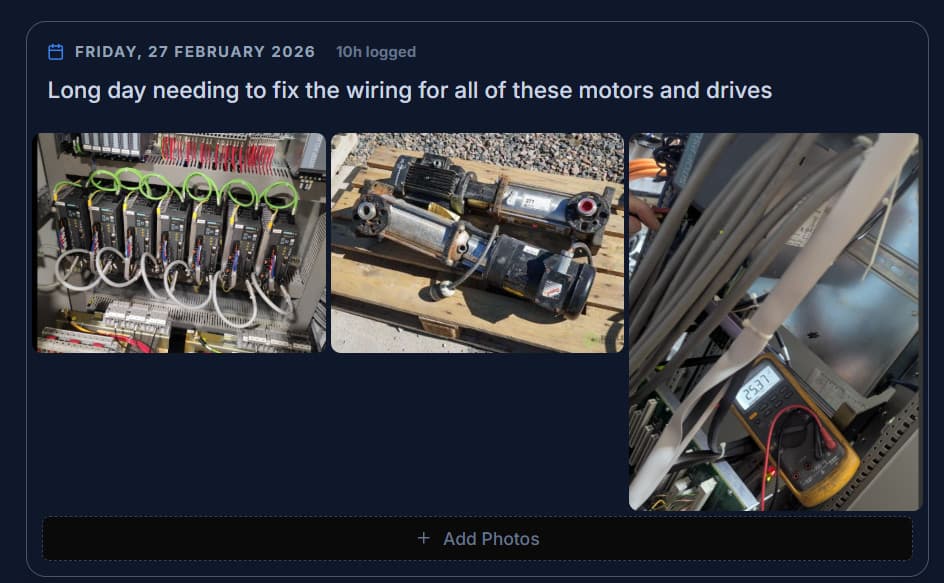
If a photo contains irrelevant areas, hover over it and click the Crop button to open the crop dialog. Drag the frame to select the portion you want to keep, then click Apply Crop.
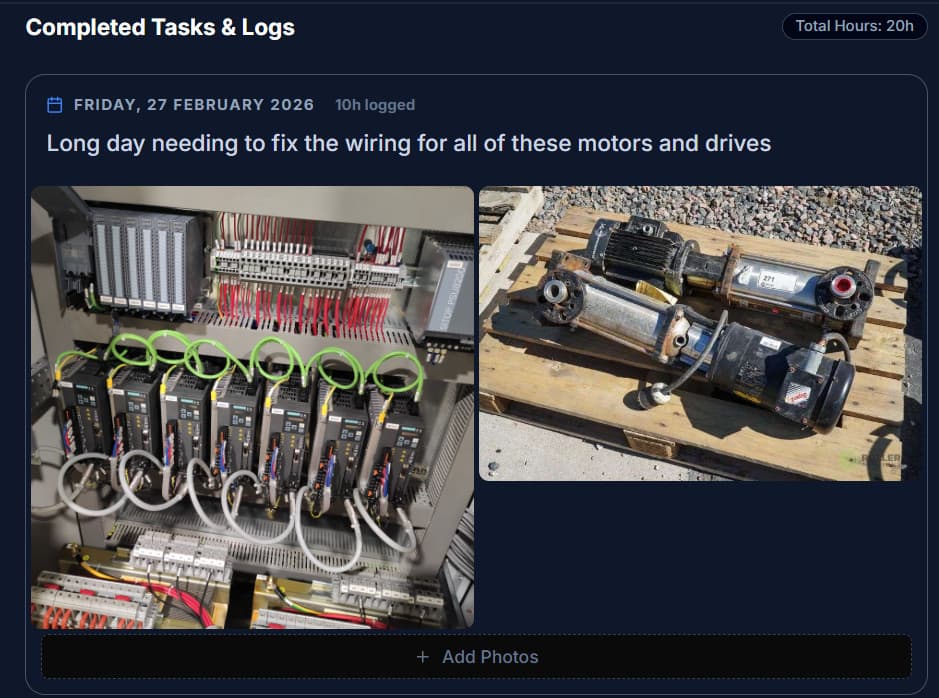
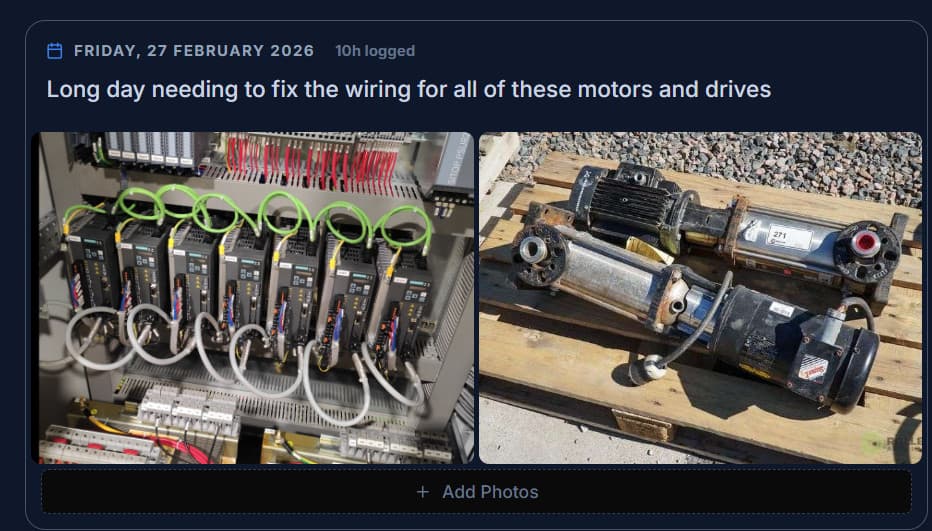
After cropping, both images are tightly framed and the daily log looks clean.
Rotating a Photo
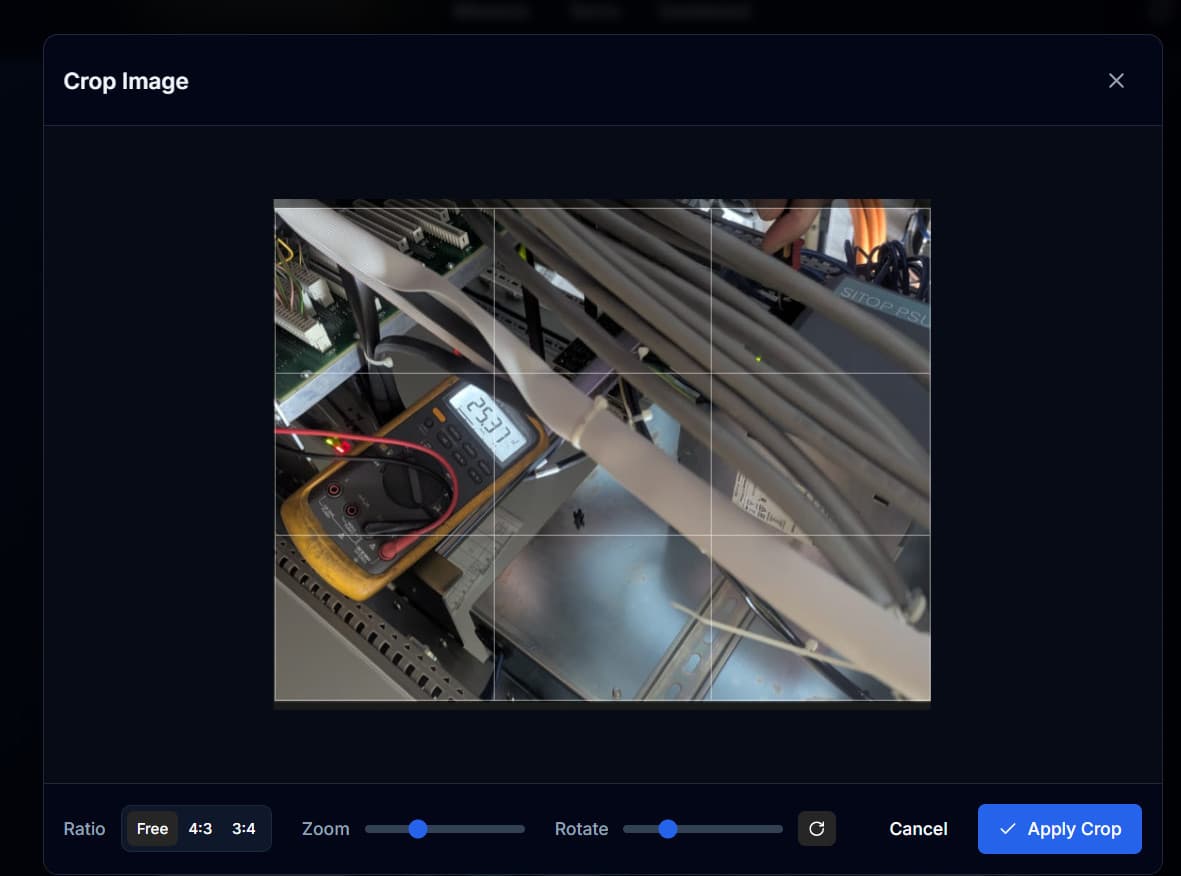
Some photos end up sideways, especially close-ups of instrument readings. Open the crop dialog and use the Rotate slider to correct the orientation. You can also click the rotate button to snap in 90-degree increments.
Best Layout with Aspect Ratios
When mixing landscape and portrait photos in the same row, the grid can look uneven because the images have different heights. Using consistent aspect ratios solves this. Crop landscape images to 4:3 and portrait images to 3:4 for a perfectly aligned grid.
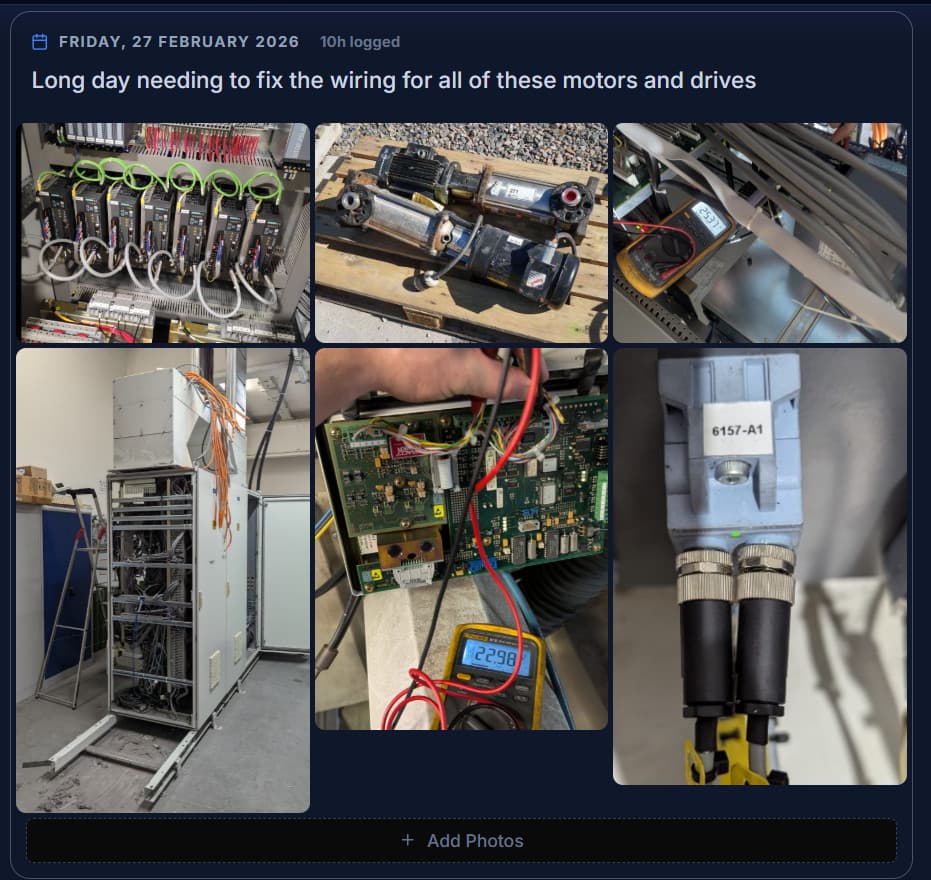
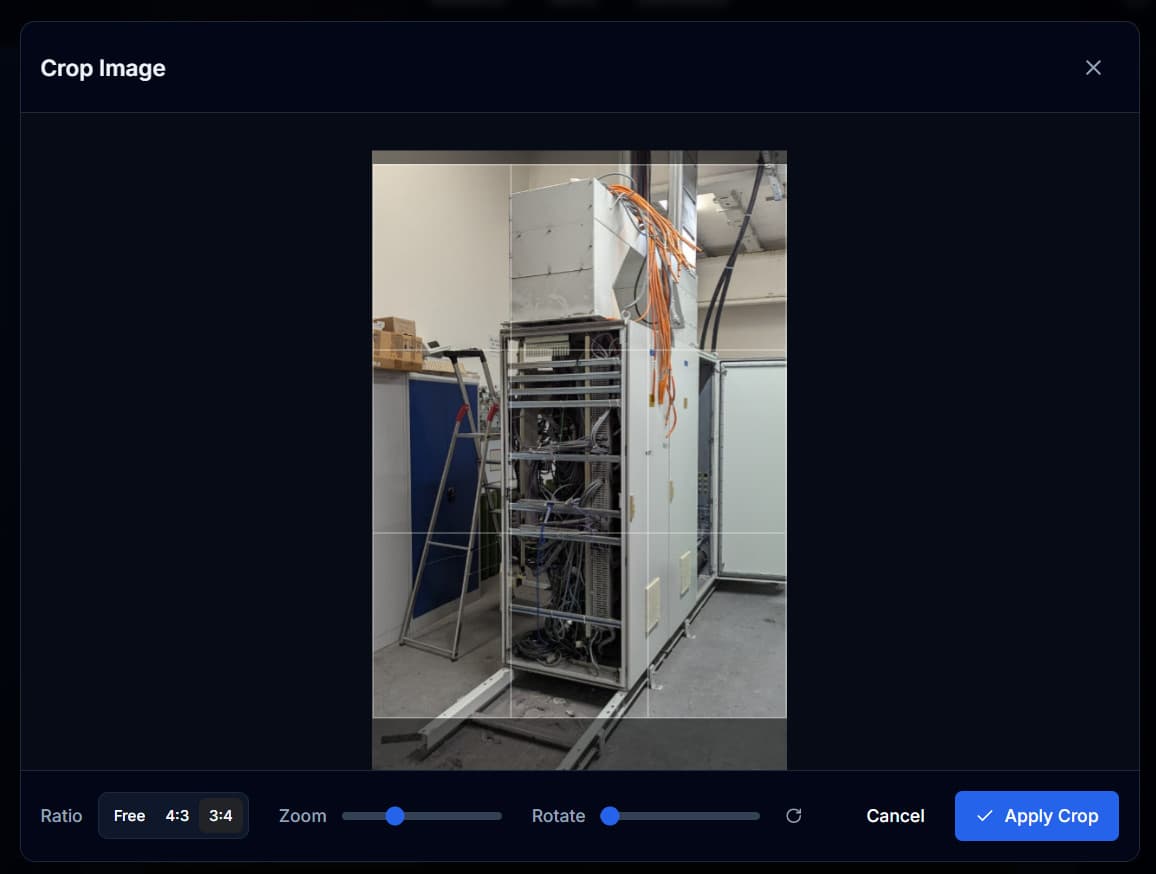
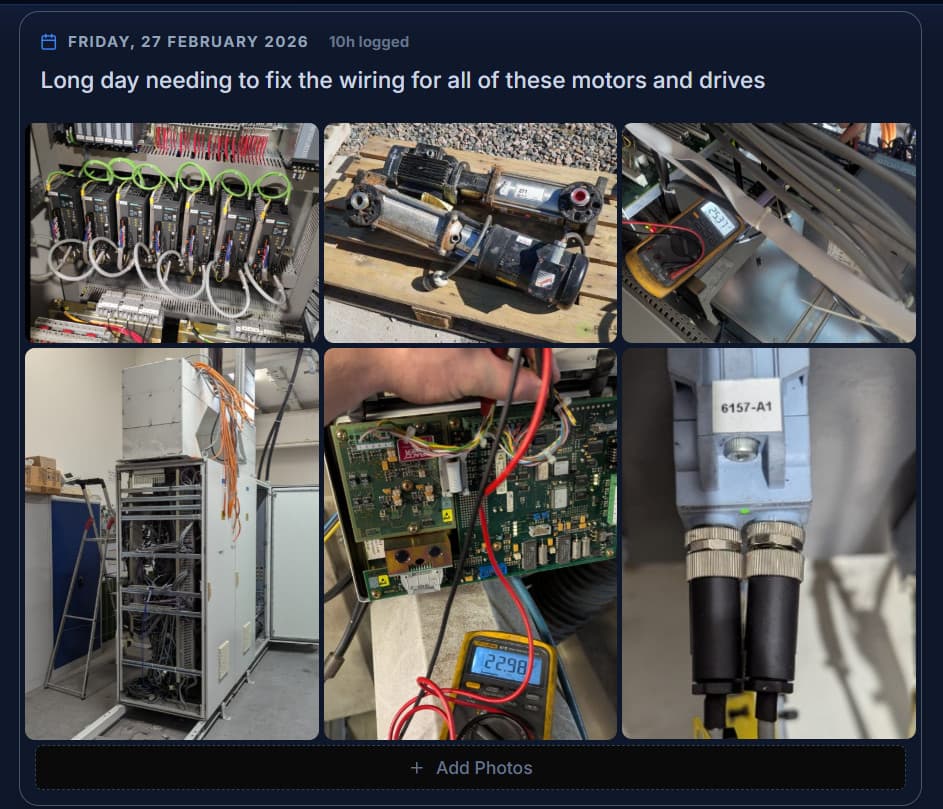
Pro tip: For the most beautiful report, put 3 landscape images together (cropped to 4:3) and then 3 portrait images together (cropped to 3:4). This creates a perfectly aligned grid every time.
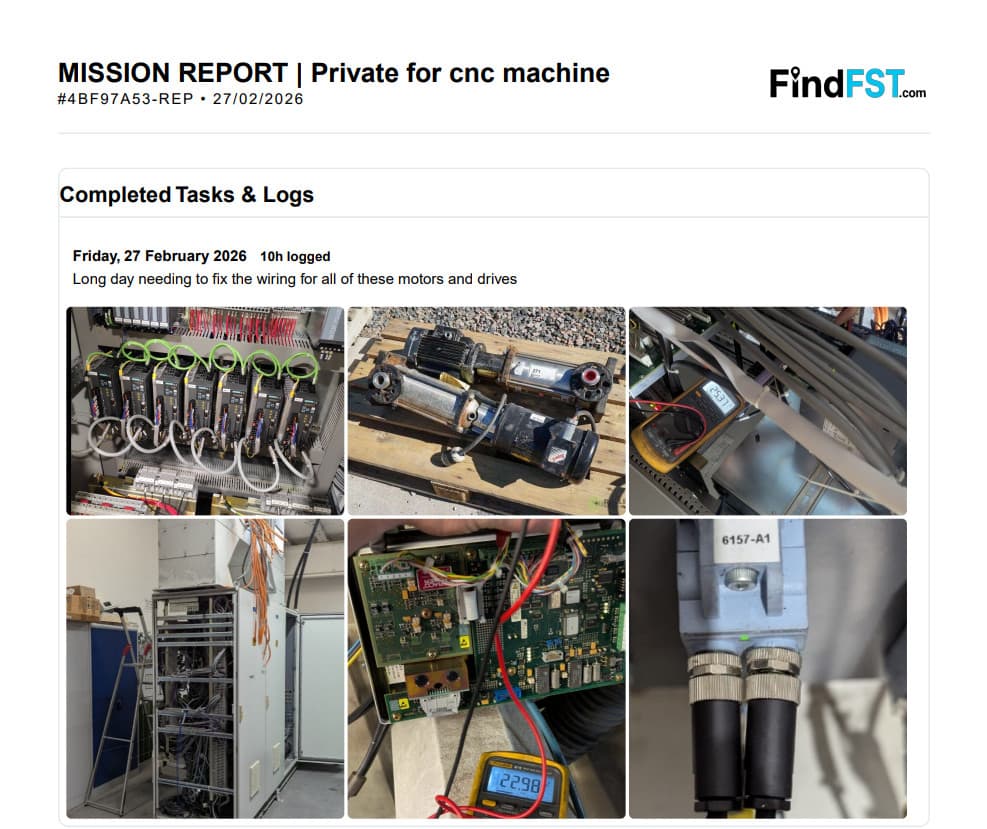
The exported PDF preserves the clean layout, giving the report a polished, professional appearance.
Best Practices
Descriptive Daily Logs
- Describe specific activities, not just 'worked on machine'
- Include part numbers, measurements, or settings changed
- Note any issues or anomalies observed
Effective Photos
- Take before and after photos of work performed
- Photograph serial numbers and nameplates
- Crop or focus on relevant details before uploading
Accurate Timesheets
- Log hours promptly at the end of each work day
- Report entries pull from timesheets — accuracy matters
- Submit timesheets for approval before finalizing
Strong Summary
- Summarize scope of work and key outcomes
- Highlight recommendations for future maintenance
- Keep it professional and concise
Sharing & Visibility
Shared (Default)
Visible to the technician, the owning company, and other platform users as part of the marketplace portfolio.
Confidential
Restricted to the owning company. The company can grant technician access using the share toggle on the report.
Important: Reports are not generated for disputed missions. The report will be unavailable until the dispute is resolved.
Ready to create your report?
Head to your dashboard to access your active missions and start building a professional report.